

The spreadsheet your whole team can finally trust.
Plan together in Excel — sales, marketing, supply chain, finance, HR. No version chaos, no broken templates.
Available on Microsoft AppSource. Published by Enabler BI as a verified Microsoft publisher. Deploy tenant-wide from your Microsoft 365 admin centre.
View the listing →Built for any team that plans in spreadsheets
From annual budgets to project tracking, Gridavera fits the workflows your teams already use.
One workbook. Every control built in.
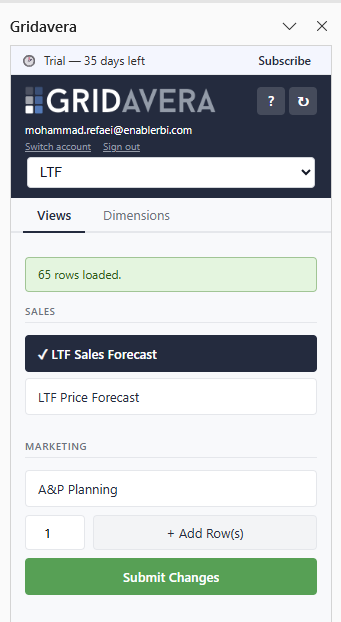
Pick a view and data loads with its formatting and validations. Edit cells, add rows, hit Submit — Gridavera tracks the diff and syncs only the changed rows back to SharePoint, versioned and audited. Try the Submit button →
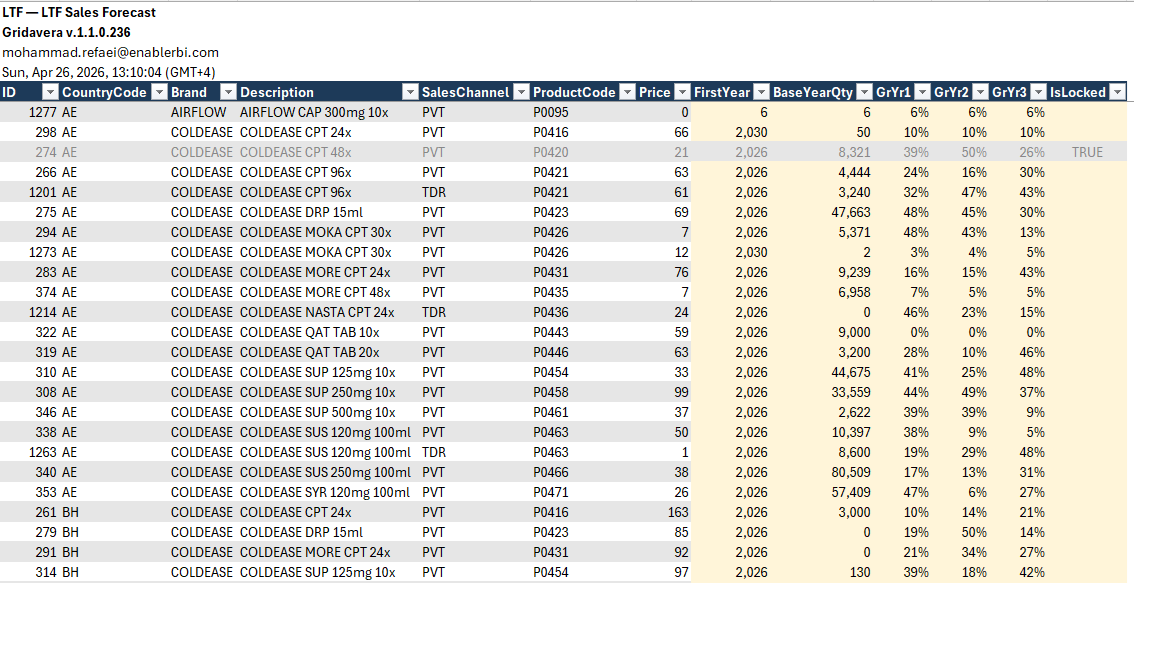
Every layer designed to keep numbers clean, controlled, and current
From clean inputs to encrypted storage to locked-down period closes — control lives in every layer, not bolted on after.
Validated input
Cascade dropdowns, checked at the cell and again at submit.
Scoped by role
Each person sees only their region or cost center.
Encrypted at rest
AES-256-GCM columns, keys in Azure Key Vault — even SharePoint admins can’t read them. Available on Professional and above.
Locked at close
Closed and approved periods become read-only.
Secure sync
Every edit routed through your Azure Function to SharePoint.
Live dashboards
One-click .pbit export — refresh and dashboards are live.
From install to insight in minutes, not months
Excel-SharePoint planning that doesn't need code, consultants, or a 12-month rollout.
Sign in with Office 365
Gridavera installs in Excel via your Microsoft account. Office SSO — no password setup.
Set up your data model — once
Run the 9-step Deployment Wizard: dimensions, transactions, views, roles, and per-user filters with guided prompts.
Plan together in Excel
Pick a view, edit cells, click Submit. Only changed rows sync back — versioned, audited, and visible only to authorized users.

Start free. Stay in Excel.
14-day free trial. No credit card required. Install in Excel with your Microsoft account and invite your team.